Getting started
Connect your app
Client-specific setup with steps and commands.
Client setup
Choose your app and follow its setup steps. The guide explains the available sign-in options and any limitations.
Connect Claude Desktop by signing in through your browser.
- Add a custom remote connector in Claude. For managed workspaces, an authorized administrator must enable it first.
- Enter the URL
https://meinkontext.de/mcp. Use OAuth with automatic client registration (DCR). - Click Add, then Connect. Sign in to meinKontext in the browser and approve access for Claude.
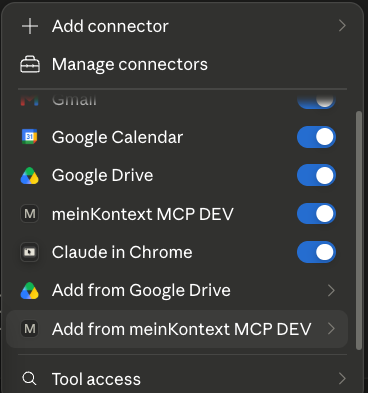
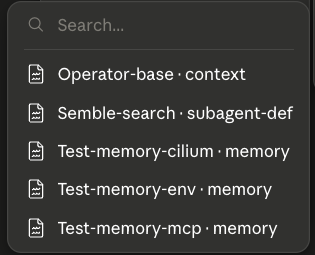
- In a chat, open the + menu → Connectors and toggle the connector on; the tools appear in the tools menu.
- Remote connector requests come from Anthropic's cloud. Use the public HTTPS endpoint; a local Desktop configuration is a separate connection method.
- For current menus and plan limits, see the official connector guide.
- In our earlier Desktop checks, resource metadata remained cached after server changes. Reconnect if the picker is stale; MCP tools read the current catalog when called.